
High-contrast design doesn't mean abandoning your brand's unique visual identity. It means being strategic about where and how you apply color, ensuring your interfaces are readable for everyone while maintaining the essence of what makes your brand recognizable.
The challenge facing designers today is clear: approximately 8% of men and 0.5% of women experience some form of color vision deficiency, and many more users face temporary or situational vision impairments. Yet brand colors are often chosen for emotional impact rather than accessibility—and that's where the conflict begins.
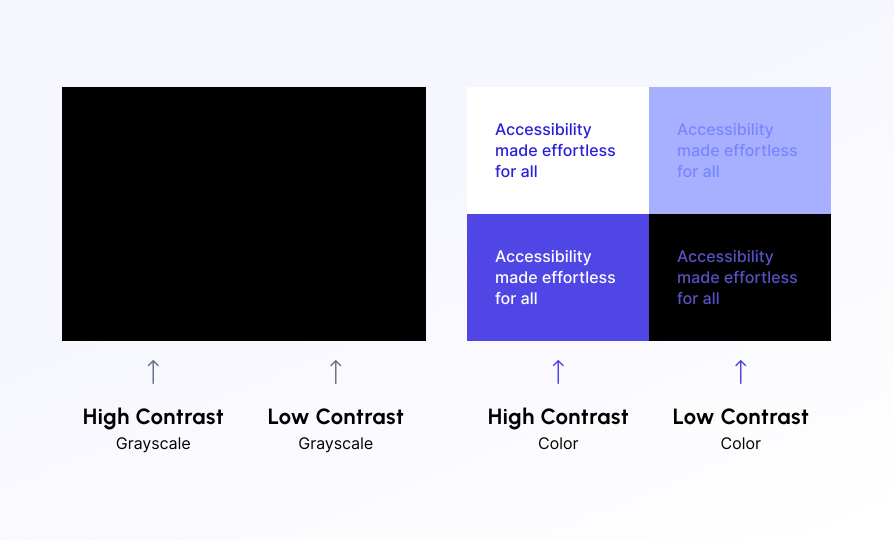 Comparing high-contrast and low-contrast color choices side by side. Source: AccessiblyApp
The good news? You can absolutely build accessible, high-contrast interfaces without turning everything black and white. It requires understanding WCAG standards, making thoughtful color adjustments, and layering non-color visual cues—all while keeping your brand's personality intact.
Understanding WCAG Contrast Standards
Before you can design accessible interfaces, you need to understand the baseline requirements. WCAG 2.1 guidelines establish minimum contrast ratios to ensure readability for users with visual impairments:
- 4.5:1 for normal text (under 18pt or 14pt bold)
- 3:1 for large text (18pt and larger, or 14pt bold and larger)
- 3:1 for UI components and graphical objects (buttons, form inputs, icons)
These ratios represent Level AA compliance, which is the standard most organizations aim for. Level AAA requires even higher ratios (7:1 for normal text, 4.5:1 for large text) and is often necessary for government or education contexts.
The problem? Many brand colors fail these tests when used directly on backgrounds. That vibrant teal that looks gorgeous in your logo might only achieve a 2:1 ratio on white—far below the 4.5:1 minimum. But this doesn't mean you need to abandon your brand palette entirely.
Strategic Color Adjustments That Preserve Brand Identity
The key to maintaining brand identity while meeting contrast standards is strategic adjustment rather than wholesale replacement. Here's how successful brands approach it:
Create Accessible Color Variants
Instead of using your primary brand color everywhere, develop accessible variants specifically for interactive elements and text. This typically means:
- Darkening light brand colors by 20-40% for use on white backgrounds
- Lightening dark brand colors for use on dark backgrounds
- Testing each variant with contrast checker tools to ensure compliance
For example, 7UP uses a green-on-white combination that achieves 5.8:1 contrast and red-on-white at 4.5:1—both meeting WCAG AA standards without losing brand recognition. The colors are adjusted from their pure brand hues, but they remain distinctly "7UP."
The 80/20 Neutral Strategy
One of the most effective approaches is what I call the 80/20 neutral strategy: use neutral colors (white, gray, black) for 80% of your interface, reserving brand colors for the remaining 20% as strategic accents.
This approach is remarkably common among successful digital products. Research shows that roughly 80% of interfaces use neutral palettes as unobtrusive backdrops, with brand colors applied sparingly for:
- Call-to-action buttons
- Navigation highlights
- Icons and illustrations
- Section dividers
- Hover and focus states
illustration.app is purpose-built for this exact workflow—generating brand-consistent illustration sets that use your color palette strategically while maintaining contrast standards. Instead of fighting with AI prompts to match your brand colors, you can instantly create cohesive visual assets that balance accessibility with brand identity.
Avoid Color Combinations That Fail
Some color combinations are inherently problematic and should be avoided entirely:
- High-saturation pairings like bright blue on red create optical "vibrating" effects
- Gradients across interactive elements can result in portions that fail contrast ratios
- Pure brand colors on brand colors (e.g., purple text on pink backgrounds from the same palette)
Instead, pair brand colors with neutrals or use drastically different lightness values from your extended palette.
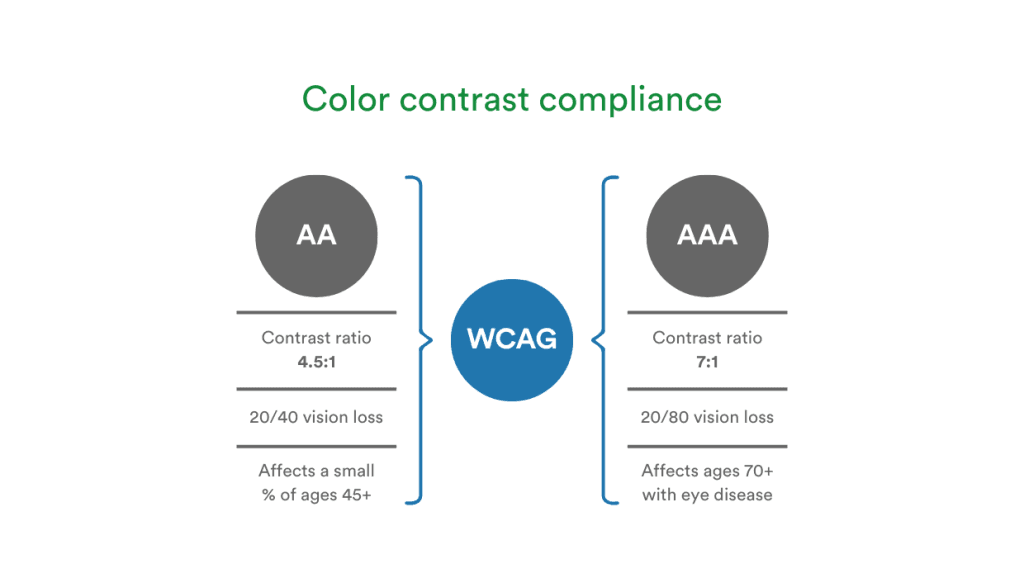 Understanding WCAG contrast ratio requirements. Source: Pageproof
Typography That Reinforces Contrast
Typography choices dramatically impact the effectiveness of your contrast strategy. The same color combination that fails with a thin 14pt font might pass easily at 18pt bold. Here's what works:
Font Weight and Size Relationships
- Avoid thin or condensed fonts for body text—they lose legibility even with good contrast
- Use 16px minimum for body text (18px is better)
- Opt for bold, non-condensed typefaces with clear letter shapes
- Avoid all-caps for long-form content—it reduces word shape recognition
Line height of 1.5 or greater significantly improves digestibility, especially when combined with proper contrast ratios. This extra vertical spacing helps users with dyslexia and low vision track lines more easily.
Strategic Font Pairing for Hierarchy
Use typography to create clear visual hierarchy that doesn't rely solely on color:
- Headings: Larger size + heavier weight + adequate contrast
- Body text: Moderate size + regular weight + maximum contrast (close to 21:1)
- Secondary text: Slightly smaller + adequate contrast (still meeting 4.5:1 minimum)
This hierarchical approach means users can navigate your interface even if they can't distinguish between your brand colors.
For more on creating accessible text that moves and adapts, see our guide on variable typography in responsive design.
Beyond Color: Non-Color Accessibility Cues
The most critical rule in accessible design: never rely on color alone to convey information. This principle protects users with color blindness, low vision, and those using monochrome displays.
Layer Multiple Indicators
For every piece of information conveyed through color, add at least one additional cue:
| Element Type | Color Cue | Additional Cue |
|---|---|---|
| Error messages | Red text | ❌ Icon + bold text label |
| Form validation | Green border | ✓ Icon + "Success" text |
| Interactive buttons | Brand color fill | Border + icon + clear label text |
| Navigation states | Color highlight | Underline + bold weight + icon |
| Charts/graphs | Color-coded data | Patterns + direct labels + texture |
Focus States That Work for Everyone
Interactive elements need clear, high-contrast focus states that don't depend on color perception. NN/g research emphasizes visible focus indicators as essential for keyboard navigation and screen reader users.
Effective focus states include:
- Thick outlines (3px minimum) in high-contrast colors
- Combination of outline + subtle fill change
- Underlines for text links that don't disappear on hover
- Scale or shadow changes for buttons and cards
Descriptive Text Labels
Replace vague calls-to-action with descriptive, context-rich labels:
-
❌ "Click Here"
-
✅ "Download 2025 Annual Report (PDF, 2.4MB)"
-
❌ "Learn More"
-
✅ "Explore Our Accessibility Guidelines"
This benefits screen reader users while improving usability for everyone.
Practical Implementation Table
Here's a quick reference for common interface elements:
| Element | Minimum Contrast | Brand Preservation Strategy | Example |
|---|---|---|---|
| Primary CTA buttons | 4.5:1 text-to-background, 3:1 button-to-page | Use darkened brand color for fill; white text; brand color as subtle border or icon | Brand teal #00B8A9 → Darker #008B80 on white |
| Text over images | 4.5:1 minimum | Semi-transparent overlay in brand color; ensure overlay + image combination meets ratio | Navy overlay at 70% opacity |
| Logos in headers | 3:1 for graphical elements | Test monochrome version; limit to 2-3 high-contrast colors; use negative space strategically | OpenAI's logo works across backgrounds |
| Navigation links | 4.5:1 for text | Use neutral colors for links; brand color for hover/active state with added underline | Gray links, brand purple hover + underline |
| Data visualization | 3:1 between adjacent colors | Add patterns, textures, or direct labels; don't rely on color coding alone | Striped bars + solid bars + labels |
Testing Your Contrast Decisions
Tools make WCAG compliance straightforward to verify:
- WebAIM Contrast Checker: Quick ratio calculations for text
- Stark Plugin (Figma): Real-time contrast checking in design files
- Chrome DevTools: Built-in contrast ratio inspector
- Color contrast checker tools: Test multiple hex codes simultaneously
Test your designs in multiple contexts:
- Light mode and dark mode (if applicable)
- Printed materials (colors shift on paper)
- Various screen types (mobile, tablet, desktop)
- Color blindness simulators (protanopia, deuteranopia, tritanopia)
 Visual guide to understanding WCAG contrast standards. Source: All Accessible
Many designers discover their "accessible" palettes still fail in real-world conditions. Jenny Henderson Studio notes that many brand palettes fail initial WCAG tests, requiring adjustment during the audit phase.
Real-World Brand Examples
OpenAI
OpenAI's visual identity demonstrates how strong negative space and monochrome compatibility enable brand consistency across contexts. Their logo works on light backgrounds, dark backgrounds, and photographs because it doesn't rely on specific color combinations—the form and spacing create recognition. This versatility is essential for accessible design.
Functional Palette Rebrands
Many brands undergoing redesigns now prioritize functional color palettes from day one. This means:
- Establishing accessible color combinations upfront
- Documenting approved pairings in brand guidelines
- Creating extended palettes with light/dark variants
- Testing logos in grayscale before finalizing colors
These proactive approaches prevent the expensive redesign work required when accessibility is bolted on afterward.
Documentation and Governance
Once you've established accessible color combinations, document them rigorously in your design system or brand guidelines:
- Approved color combinations with specific hex codes and use cases
- Minimum font sizes for each color pairing
- Interactive state specifications (default, hover, focus, disabled)
- Hierarchy guidelines for headings, body text, and captions
- "Do not use" examples showing failed combinations
Brand designers like Jenny Henderson recommend creating visual style guides that show approved combinations side-by-side with prohibited ones, making it easy for teams to apply standards consistently.
The Business Case for Accessible High-Contrast Design
Beyond moral obligation, accessible design delivers measurable business benefits:
- Improved SEO: Search engines favor accessible sites
- Broader audience reach: 15-20% of the population benefits from accessibility features
- Reduced legal risk: ADA compliance is increasingly enforced
- Enhanced brand reputation: Inclusive design signals company values
- Better usability for everyone: High contrast and clear hierarchy improve experience across the board
As AChecker research emphasizes, accessible designs benefit all users through predictability, polish, and thoughtful information hierarchy—not just those with disabilities.
When you need to create brand-consistent illustrations that maintain proper contrast ratios across an entire design system, illustration.app excels at generating cohesive visual sets with your specific color palette built in. This eliminates the guesswork of manually adjusting AI-generated images to match both your brand and accessibility standards.
Practical Checklist for Implementation
Here's your actionable roadmap:
- Audit your current brand palette using WCAG contrast tools
- Create accessible variants of brand colors (darkened/lightened versions)
- Establish the 80/20 rule: neutrals for structure, brand colors for accents
- Define typography standards: minimum sizes, weights, line heights
- Layer non-color cues: icons, patterns, labels for all color-coded information
- Test focus states with keyboard navigation
- Document approved combinations in brand guidelines
- Simulate color blindness and low-vision scenarios
- Test on real devices across multiple screen types
- Review with actual users who have visual impairments
For more on creating comprehensive accessible design systems, explore our guide on high-contrast design systems beyond black and white.
Looking Forward
Accessible high-contrast design isn't about constraint—it's about creative problem-solving within meaningful parameters. The brands that thrive are those that treat accessibility as a design challenge worth solving elegantly, not a compliance checkbox to grudgingly complete.
As AudioEye notes, purposeful color palettes that balance brand expression with functional hierarchy create interfaces that work for everyone. This approach doesn't dilute brand identity; it strengthens it by ensuring your visual language reaches the widest possible audience.
The shift toward accessible design is accelerating, driven by regulation, user expectations, and designer awareness. Tools continue improving, making contrast checking and color adjustment faster than ever. But the fundamental principle remains: good design is inclusive design, and inclusive design requires high-contrast interfaces that preserve the brand essence your users recognize and trust.
Start with your most-used interface elements—buttons, navigation, forms—and work outward. Every contrast ratio you improve, every non-color cue you add, and every accessible variant you create makes your brand more welcoming to millions of users who currently struggle with your interfaces. That's worth celebrating.